
Project Details card on the Overview tab
space.vars.company\_name Operations team. To ensure that your team has enough time to prepare for the test, space.vars.company\_name usually schedules tests two weeks—or at minimum, one week—between the Statement of Work (SOW) signature and the start of the pentest.
{% hint style="info" %}
If your test is scheduled more than 2 weeks in advance, you will receive email reminders about your upcoming test, beginning 2 weeks before the pentest start date. These notifications are required.
{% endhint %}
***
### **Viewing the dates assigned to your pentests**
The date listed in space.vars.product\_name is for when your pentest starts. Based on the complexity of the application and the scope of the pentest, the end date or duration of the test will vary.
On the **Overview** tab, the **Project Details** card includes the start date for both your next and last test.
Project Details card on the Overview tab
space.vars.company\_name should know about the test.
3. Click **Proceed**.
space.vars.company\_name will review and process the request in a timely manner.
{% hint style="warning" %}
When rescheduling your test, you must let the Pentest Manager know at least two weeks before the scheduled start date.
Requests that are submitted less than two weeks before the start date have limited flexibility, and rescheduling fees might apply.
{% endhint %}
You will receive multiple notifications to remind you of the start date for your next pentest, either by email or Slack. If you receive reminders on Slack, you can also click the link in the notification to reschedule your test.
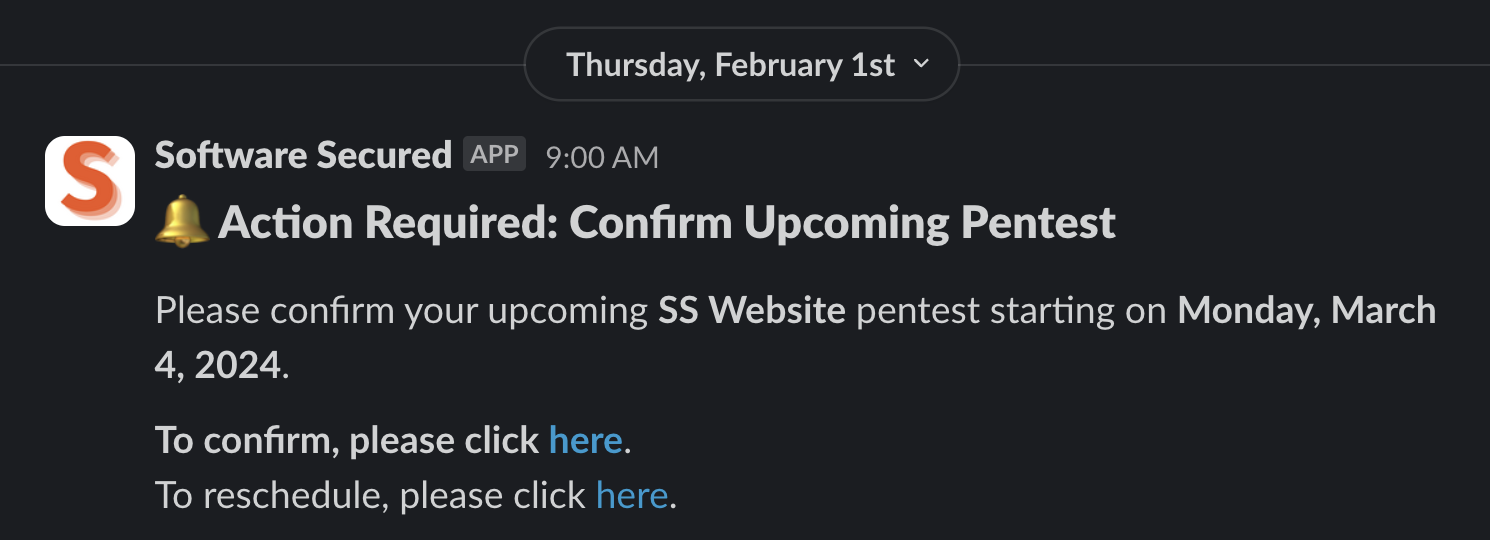
Slack notification regarding a pentest start date