> For the complete documentation index, see [llms.txt](https://docs.softwaresecured.com/llms.txt). Markdown versions of documentation pages are available by appending `.md` to page URLs; this page is available as [Markdown](https://docs.softwaresecured.com/after-testing/remediating-vulnerabilities/using-integrations-to-track-remediation.md).

# Using integrations to track remediation

{% hint style="info" %}
Note: These integrations are available with the Standard Plus package or above.
{% endhint %}

{% hint style="warning" %}

#### Prerequisites

Setup a ticketing integration in <code class="expression">space.vars.product\_name</code>. For more information, see:

* &#x20;[Jira](/account/integrations/jira.md)
* [GitHub](/account/integrations/github.md)
  {% endhint %}

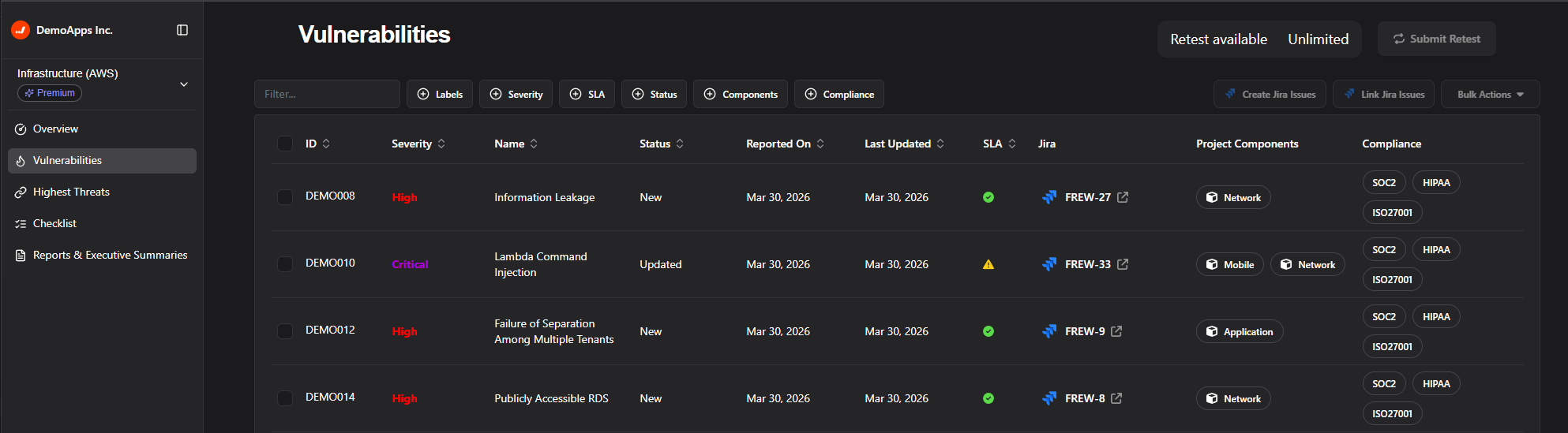
<figure><img src="/files/bXMXC8YJJgTWHu24oxgH" alt=""><figcaption><p>Ways to use the Jira integration on the <mark style="color:orange;"><strong>Vulnerabilities</strong></mark> page. </p></figcaption></figure>

***

### **Create tickets**

This procedure uses the configured field mapping for the ticketing integration create new issues in your project management platform for each of the vulnerabilities that you select.&#x20;

**Steps**

1. Go to the <mark style="color:orange;">**Vulnerabilities**</mark> page.&#x20;
2. Using the multiselect option, select the vulnerabilities that you want to create a ticket for.&#x20;
3. In the bulk actions dropdown, use the option to create issues for your project management platform.

**Results**

These issues are created in your integrated platform with the default status.

***

### Link an unconnected vulnerability to an issue

Complete these steps to link a single vulnerability to a ticket on an integrated platform.&#x20;

**Steps**

1. On the <mark style="color:orange;">**Vulnerabilities**</mark> page, identify a vulnerability that is not connected to a Jira item.&#x20;
2. Click the <mark style="color:red;">**Not Connected**</mark> option in the integration column for the vulnerability.&#x20;
3. In the <mark style="color:orange;">**Select Task**</mark> menu, select the ticket that you would like to link to the vulnerability, and then click <mark style="color:orange;">**Complete**</mark>.

**Results**

The tickett is linked to the vulnerability in <code class="expression">space.vars.product\_name</code>.

***

### Jira: Link existing issues to multiple vulnerabilities

If you already created Jira issues to track your vulnerabilities, you can link those issues to <code class="expression">space.vars.product\_name</code> vulnerabilities. By using a custom UID field to indicate which Jira issue maps to which vulnerability, you can connect all of your issues with one click.

**Steps**

1. Go to the <mark style="color:orange;">**Vulnerabilities**</mark> page.&#x20;
2. Using the multiselect option, choose which vulnerabilities you would like to link.
3. In the modal, select which field in your Jira issues contains the issue UID (such as <kbd><mark style="color:blue;">FZBZ001<mark style="color:blue;"></kbd>).&#x20;
   * This field can be any field that *contains* the UID—it doesn't have to be a field that has *only* the UID.&#x20;
   * For example, if your issue titles contain the UID, you can use the title field.
4. Click <mark style="color:orange;">**Next**</mark>.
5. Review the mappings that <code class="expression">space.vars.product\_name</code> identified. If mapping issues appear, resolve any UID mismatches in your Jira issues.&#x20;
6. When the valid mappings are correct, click <mark style="color:orange;">**Save**</mark> to link all of your vulnerabilities.

**Results**

The vulnerabilities are all linked to their corresponding Jira issues.&#x20;
